
Recording a New Song
To record a new song, there are two methods:
Method #1 of Recording a New Song
- From the Home page, click the red “New Song” button on the right. This takes you to a page named “Add New Song .”
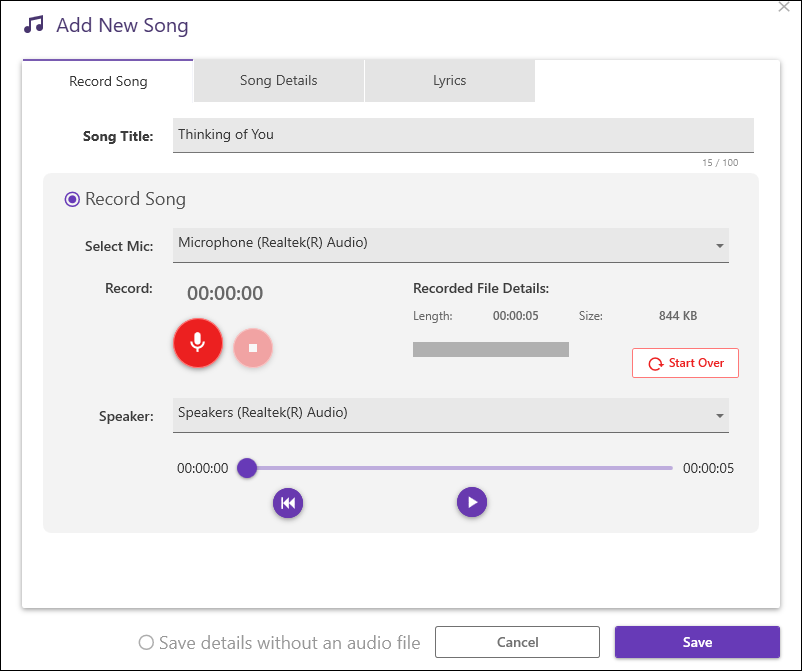
- SONG TITLE: Type in whatever name you’d like in the box next to “Song Title.” If you’d prefer to add a name later, a default song name will be attached to your recording, consisting of the date and time of the recording, e.g., Rec_11_Apr_25_14_23_52, which means “Recorded on April 11, 2025, at 2:23 and 52 seconds, p.m.”
- Click the “Record Song” button.
- Select your microphone and the speaker or headphone output from the dropdown menus.
- RECORD: Finally, click the red button with the microphone icon. This will immediately begin your audio recording.
- PAUSE: To pause your recording, click the same button, which is now showing two vertical bars. Re-clicking that button will resume recording from where you paused.
- STOP: Clicking the little square in the red circle will STOP the recording and you will then notice on the right, in the section headed “Recorded File Details,” an indication of the song’s length in minutes and seconds and its file size.
- START OVER: If you want to replace what you just recorded, click the START OVER button all the way on the right. This will erase your existing recording, allowing you to click Record again to start another audio recording.
- PLAY: After clicking “Stop,” you can listen back to what you just recorded by pressing the Play button below.

As you listen to the playback, the Play button will change to a Pause icon. Pressing the Pause button will pause the playback and allow you to re-record all audio from that point forward (see paragraph 10, below). - ADDING NEW AUDIO:
- For adding audio to the end of an existing recording:
- Play your recording.
- Go to the end of the recording (either by moving the “ball” all the way to the right or using the Append to End icon).
- Click Record to start recording new audio, which will be added to the end.
- For replacing audio from a specific point:
- Play your recording.
- Click Pause at the point where you want to start the new audio (or move the “ball” to that position).
- Click Record to start recording.
- The new audio will overwrite everything from that point in the recording, forward.
- First minute: Original recording
- After one minute: Your new recording This can be very helpful if you are recording a song and need to change the last part of the song, saving you from having to record the whole song from scratch.
- For adding audio to the end of an existing recording:
- SAVE: When you are satisfied with your complete recording, click the SAVE button at the bottom of the Add New Song window, to save your audio file. This will also take you back to the Songs page.
Method #2 of Recording a New Song
- Click “Songs” in the left menu of the home page.
- Click “New Song” in the upper right corner of the page. This takes you to a page named “Add New Song”.
- Proceed as outlined above, starting with step #2.
Adding Just Lyrics or Title Ideas
- From the Home page, click the orange “New Lyrics” button on the right. (You can also click “Songs” in the left menu of the home page, then click “New Song” in the upper right corner of the page.) This takes you to a page named “Add New Song .”
- Titles: To add just a title idea, replace the default date in the Song Title field and click “Save details without an audio file” and then Save. Now you will have a blank song tile with just a new title. Another option is to save a song named “Title ideas” and add your new title ideas to the Lyrics page of this song; the first time you do this, you will need to click “Save details without an audio file.”
- Lyrics: To add just some lyrics or lyric ideas, click the “Lyrics” tab, type in your lyrics or lyric ideas,click “Save details without an audio file,” then click “Save.” Note that the song will be saved with the date and time as the title; to avoid that, type in a word or two in the Song Title field before–or after–you click over to the Lyrics tab, but in any case before you click Save. Of course, you can always edit the Song Title later, but a brief title related to the lyric may help you find the song faster later on. Back on the Songs page, adding a few comments to your just-written lyric may also help you locate the lyric later, when perhaps you can’t remember the exact words used.
Later on, you can do a search for songs with ONLY lyrics or ONLY titles (see “Search Options,” below). Then you can scan the titles for ideas (like a “title book”) or switch over to “Lyrics View” (see “Song Display Options,” below) to scan your unfinished lyrics (or completed lyrics that need music).
Punch-In/Insert Audio
[Windows only]
“Punch-in” allows you to overwrite a portion of recorded audio, substituting the new audio for the already recorded section. In short, it allows you to fix a mistake or re-do a section of the audio.
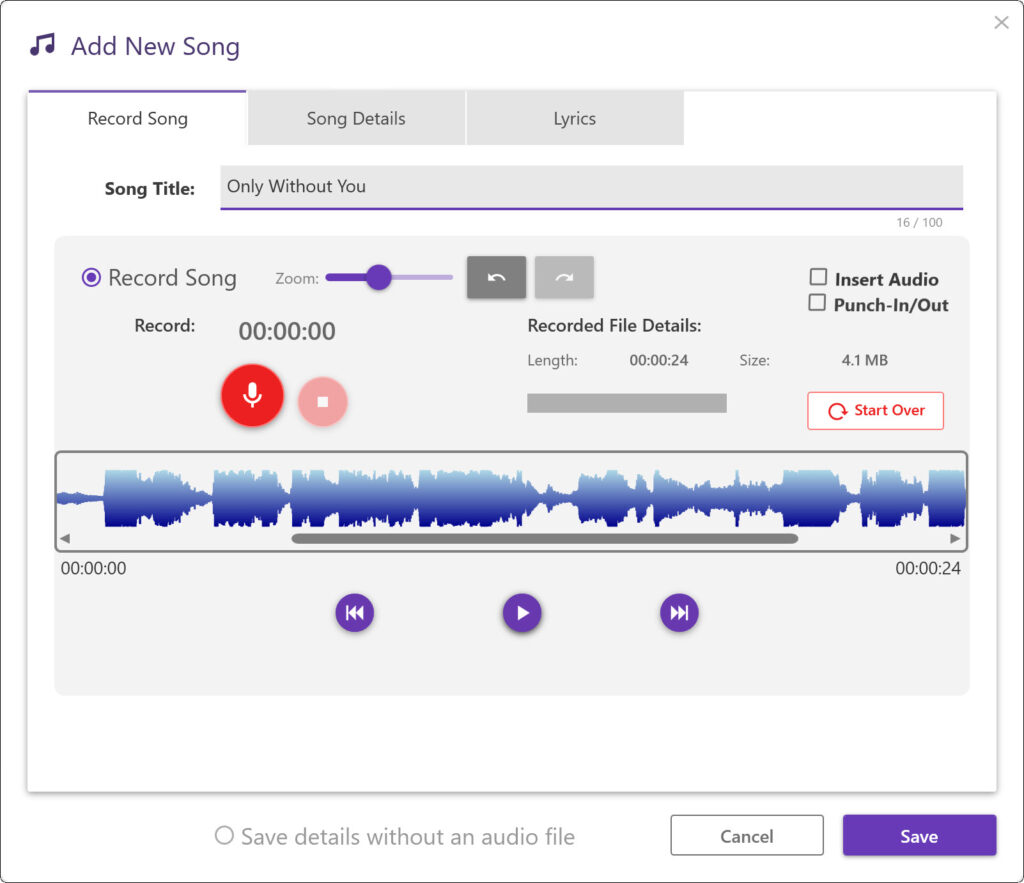
Use the “Zoom” slider to increase or decrease the height of the audio wave form as necessary. Use the horizontal scroll bar to move left and right in time, in the audio recording.
Click the box next to “Punch-In/Out” then set the markers as follows:
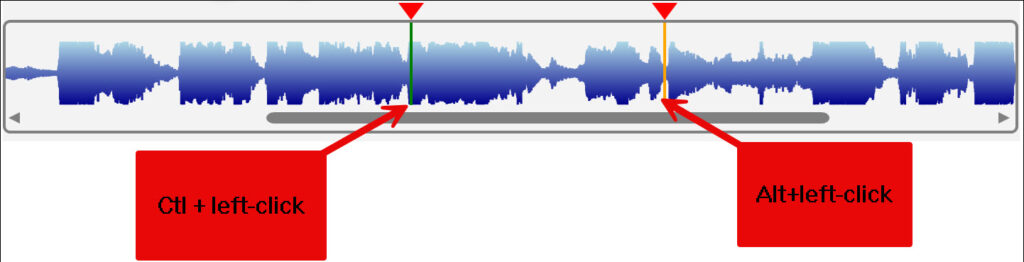
Click directly on the vertical markers to drag left or right to adjust their position, if necessary.
When you are ready, Left-click somewhere to the left of the first marker and click Record. The recorded audio will play back up to the point of the left marker then switch to Record, until the playback reaches the right marker.
After checking your punch-in, if you made a mistake click the Undo arrow at the top of the window and try again. Compare your takes with the Undo and Redo arrows until you are satisfied.
“Insert Audio” allows you to insert (add) new audio in the middle of an existing track. It ADDS time to the track, allowing you to insert a missing word or chord to the existing track..
Click the box next to “Insert Audio” then Ctl+left-click to set the marker where you want the insert to begin. Click directly on the vertical marker to drag it left or right to adjust its position, if necessary. When you are ready, Left-click somewhere to the left of the marker and click Record. The recorded audio will play back up to the point of the left marker then switch to Record, until you click Stop. However long you recorded will be inserted into the existing audio, starting at the marker.
Adding Music to End of Track. To add more music at the END of your song, tick the Insert Audio box, then move to the end of the song and set the Insert Audio marker (Ctl+Left-click). Start Record somewhere before the end of the song, and start to sing/play as soon as the vertical cursor reaches the marker. Click “Stop” when you are done, and your new audio will have been added on to the end of your song.
As discussed above, use Undo/Redo to fix any mistakes until you are satisfied with your final version.
Finally, click Save to save your work, before you leave the page.