
One of the primary features of SongwritersdB is the ability to search through all of your songs, to find the ones you want to finish, collaborate on, or share. A robust and sophisticated search engine will accomplish all of that, no matter how many hundreds of songs you may have in the database.
Normal Search
Entering keywords in the search box at the top of the page will search for those words, based on the other search criteria you have selected in the Advanced Search (see below). Note that capitalization is ignored. Also, a search for more than one word will limit the results to those songs that include ALL the listed words AND in the order in which you entered them.
To start with a clean slate, open Advanced Search, click Reset, then tick whichever boxes at the top (Title, Comments, and/or Lyrics) you wish to search through. Click “Apply” and now your text searches will check all songs based on your selection. (If you un-tick all the boxes at the top, your search will return no songs.)
Advanced Search
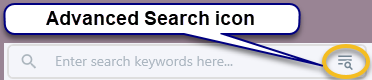
Clicking the small icon with three horizontal lines and a magnifying glass takes you to the Advanced Search window. Here you can search just song titles, just comments, just lyrics, or any combination of the foregoing. In addition, you can search for all songs within a particular genre, tempo, star rating, music/lyrics completion, recording status, copyright status, and whether you registered the song with a performing rights organization (PRO), such as ASCAP, BMI, or SESAC.
For example:
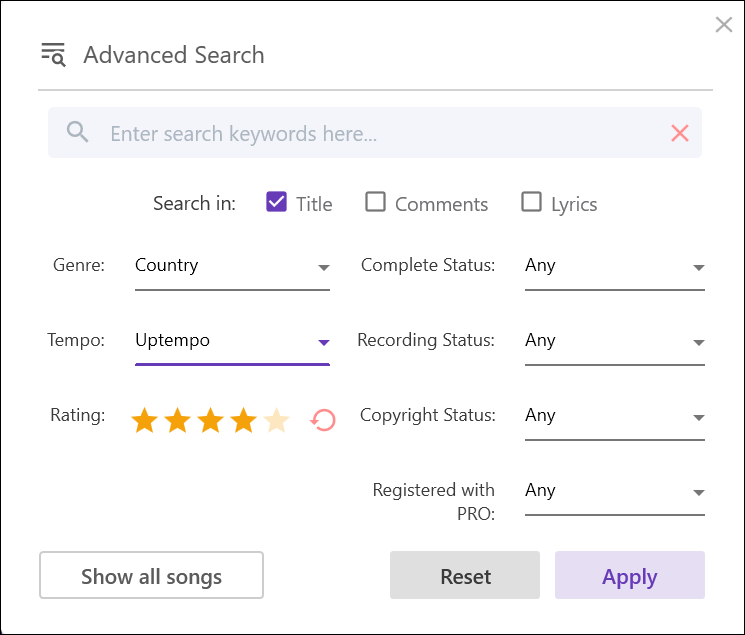
If I wanted to display all uptempo country songs rated four stars, I would enter it this way:
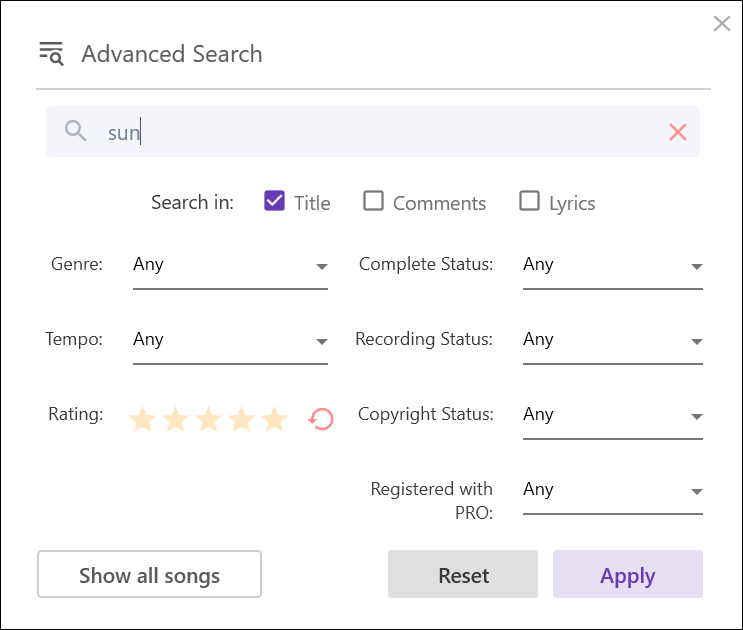
To display all songs including the word “sun” in the title:
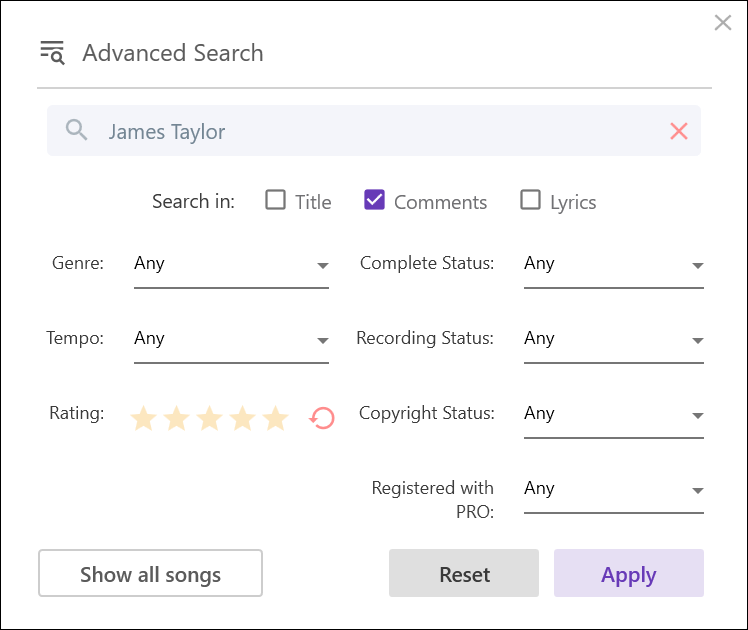
To display all songs including the words “James Taylor” in the comments section:
To display all blues songs with incomplete lyrics but completed music:
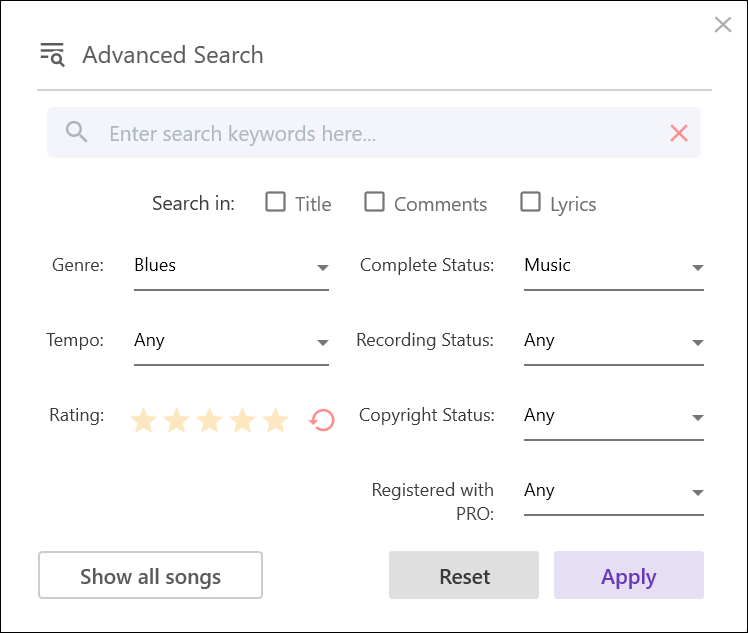
How to use the “Complete Status” dropdown menu:
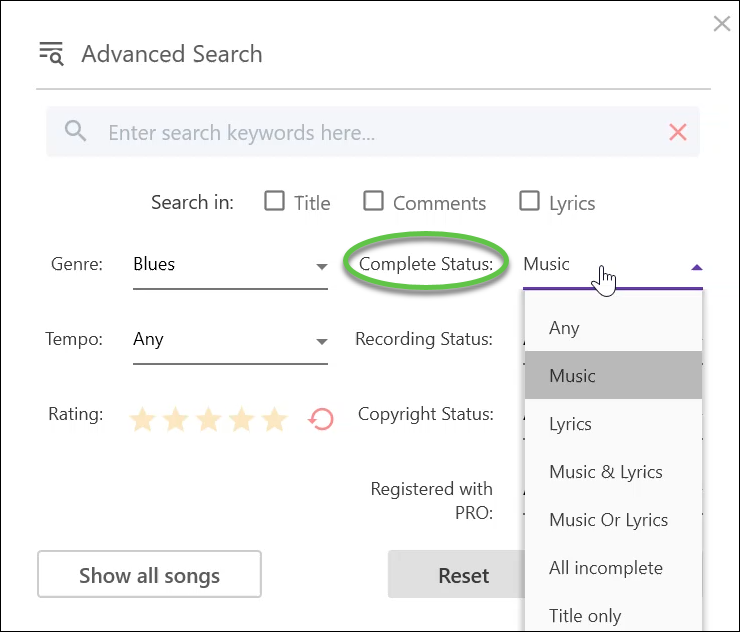
If you want to find all your songs with:
- Completed music but still need lyrics: Select “Music”
- Completed lyrics but still need music: Select “Lyrics”
- Completed music AND lyrics: Select “Music & Lyrics”
- Completed music OR lyrics, but not both: Select “Music Or Lyrics”
- Incomplete music AND incomplete lyrics: Select “All incomplete”
- No audio file and no text in lyrics field: Select “Title only”
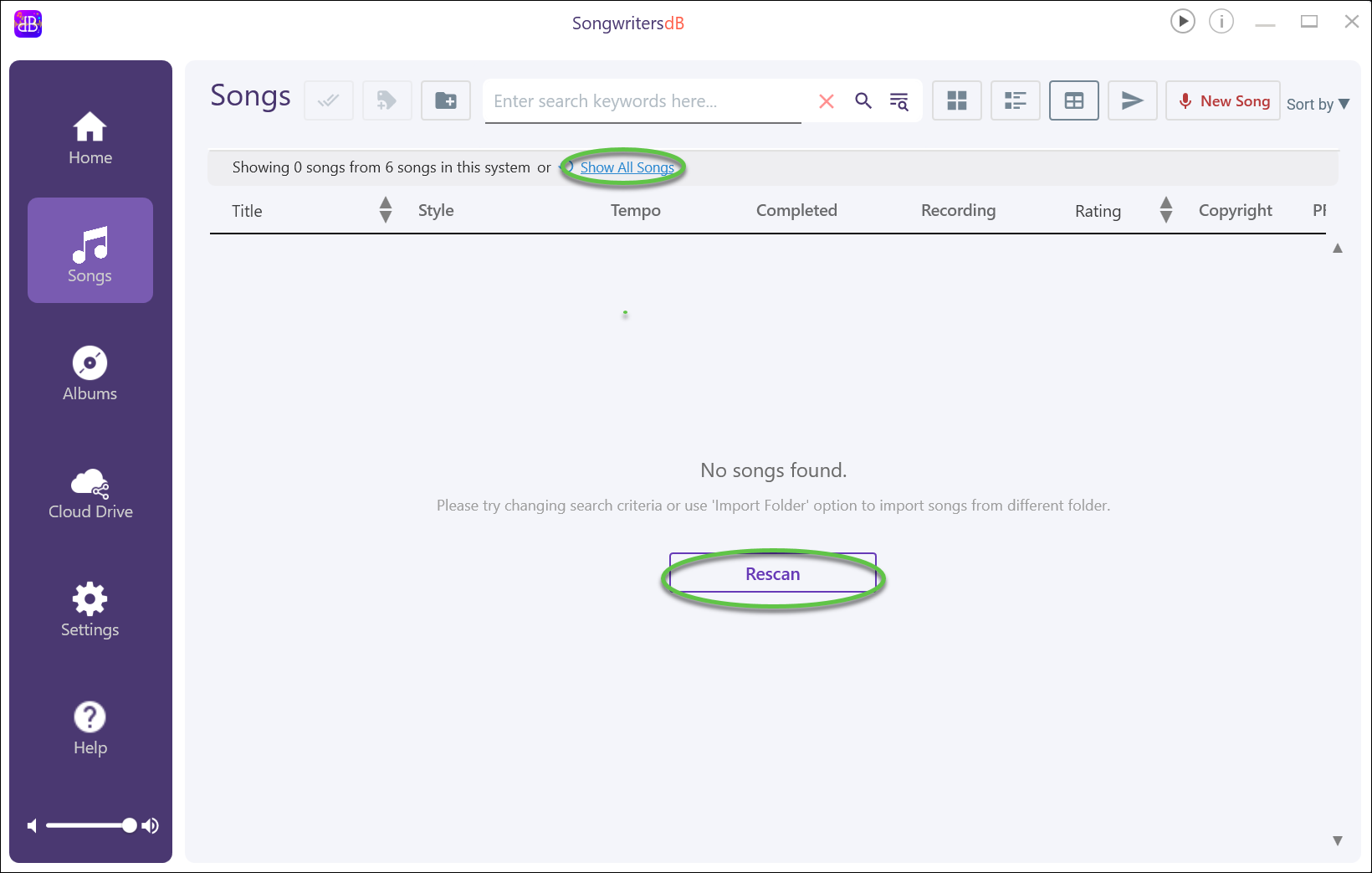
NOTE: After a search, sometimes NO songs are displayed, because none match the search criteria.
If you once again want to see all the songs currently within the app, you can click either “Show All Songs” within the Search window or at the top of the Search page, or “Rescan” in the middle of the page:
However, there is a small difference between the two operations:
“Show All Songs” – This button simply changes the filter. For example, if you select the “date recorded” filter and no songs were recorded within the app, yet, then no songs will display. However, if you then click on the “Show All Songs” button, the filter will change to display all the songs by their names, in alphabetical order.
“Rescan” – This button is used if, due to some system issues, songs were not fetched from the database. Clicking on “rescan” will prompt the system to check the entire database again to fetch songs and fix any issues encountered during the fetching process.