
There are two ways to edit song details (genre, tempo, star rating, completion stage, recording stage, copyrighted, registered, etc.).
- METHOD ONE: Click the“Edit Song Details”icon on a song tile:
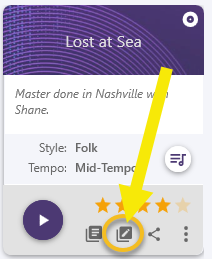
This opens a large window……that gives you the following options: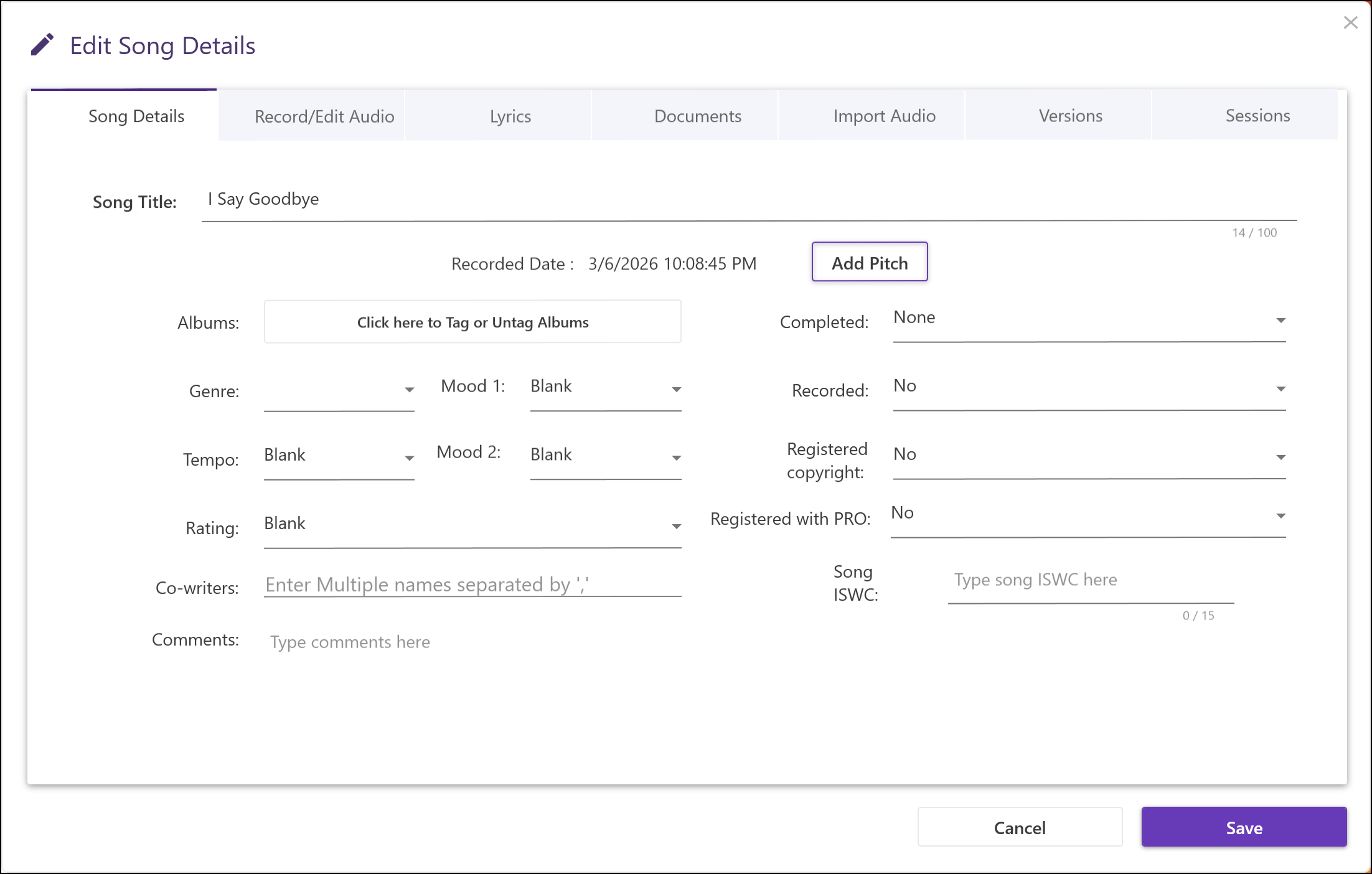
Song Title: Here you can enter a song title, if you have one. If not, the date and time the song was recorded will be displayed here. If you have a lot of songs with no mp3 metadata titles, but the titles are the same as the names of the mp3 files, you can tick the box on the Import Songs page to use the mp3 file name as the Title of the song. (See “Adding an entire folder of songs,” above.)
Genre: We start you off with 15 of the most common genres (e.g., rock, folk, blues, country, etc.). The Pro/Pro+version allows you to add and delete genres (see below) to fit your particular styles of songwriting. Attaching a genre to your songs will help you narrow down a search for a particular type of song if you are pitching to an artist within a certain genre, etc.
Tempo: Is the song a ballad? Mid-tempo? Or Uptempo? This will also help you in your searches for particular types of songs to fit a certain situation.
Rating: Adding a star rating helps you separate the great from the not-quite-there-yet songs. No one writes nothing but hit songs every time they sit down! Going back every month or so to re-visit your works of art with an honest assessment—reflected in the star ratings—will help you to concentrate on those most worth working on. No use spending a lot of time on a 2-star song when you have 5-star songs that still need to be finished, first! Later, a quick search for unfinished 5-star songs will pull up a bunch of songs you really need to work on first.
Moods 1 and 2: Here you can tag the song with one or two mood indicators, to help you characterize the song for later searching. If you select, say, “Happy” as Mood 1 or 2–regardless of any additional mood selected–a search for all songs tagged “Happy” would include that song in the display. If you input two different moods, e.g., “Happy” and “Frantic”, then regardless of the order in which you input or selected the two moods, a search for all “Happy” and “Frantic” songs will only display songs that include both moods.
Completed:None = neither music nor lyrics is completeMusic = the music is complete but not the lyricsLyrics = the lyrics are complete but not the musicMusic & Lyrics = both lyrics and music are complete
Recorded:No = No demo recorded, yetVoice Memo = Rough song recorded within SongwritersdB or with a different voice memo-type app.Work Tape = A more-fleshed-out version with additional instruments and maybe some vocal harmony.In-Progress = Demo started, but not yet finished (mixed and mastered).Demo = A more polished version, suitable to pitch or post online on social media.Master = A professionally recorded and mastered version, ready to upload to the online distributors or release on a CD, vinyl, etc.
Registered Copyright:Yes = Song has been registered with the U.S. Copyright OfficeNo = Not yet registered with the U.S. Copyright Office
Registered with PRO:PRO: Performing Rights Organization (ASCAP, BMI, or SESAC)Yes = Song has been registered with a PRONo = Song is not registered with a PRO
Song ISRC:An International Standard Recording Code (ISRC) is a unique 12-character alpha-numeric identifier for individual recordings. Basically, you need to include the ISRC for every song you plan to distibute online. It does not identify the SONG, just a particular RECORDING of a particular song. It can be used to track royalty payments due you. Once you have an ISRC for one of your songs, be sure to enter it into the field provided, within the Song Details page.
Comments: Adding comments is super-important, since it will help you find the song months or years from now, when you can’t remember the name or if there are no lyrics, yet. For example, you might add the comment “Justin Beaver-type beat” or “super-moody minor melody” or “this would be great for Bob’s new band” and so on. Our super-fast search feature will later quickly
locate the missing song for you.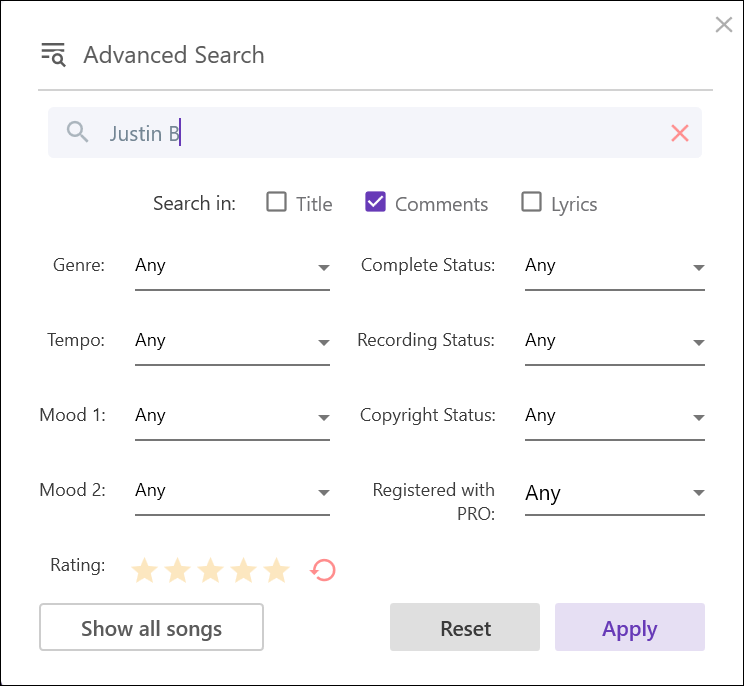
- METHOD TWO: Click the “Quick Details” icon on the right side of a song tile:
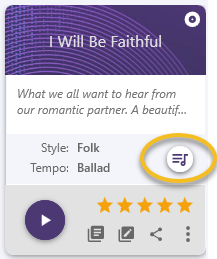
This opens a smaller window to edit the same song details: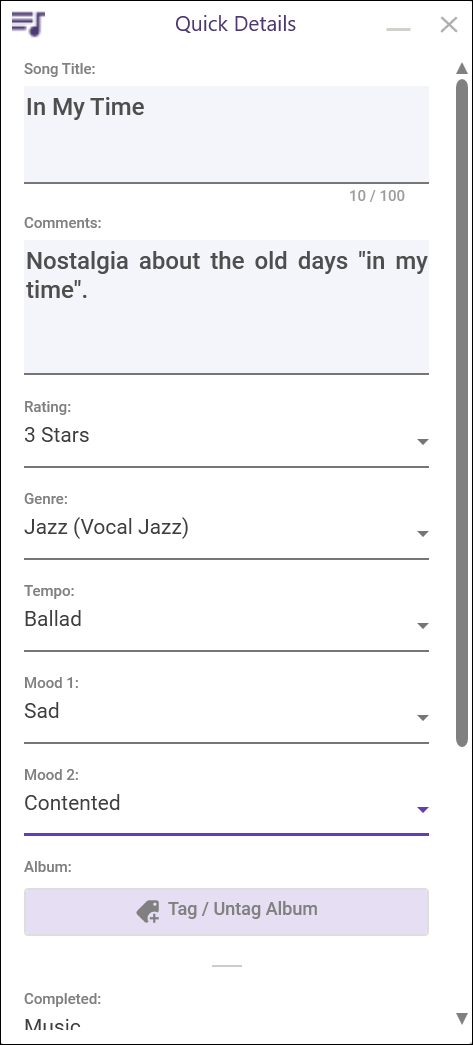
Because this window opens outside the main window, this can be useful when you wish to keep the display of song tiles in view and show the details of another song: simply click the “Quick Details” icon in another song and the details in the Quick Details panel will immediately be updated to that of the new song. Very handy for making a lot of quick changes to many songs!
Moving the Window: Left-clicking in the top portion of the Quick Details window will enable you to drag and reposition the window wherever you like.