
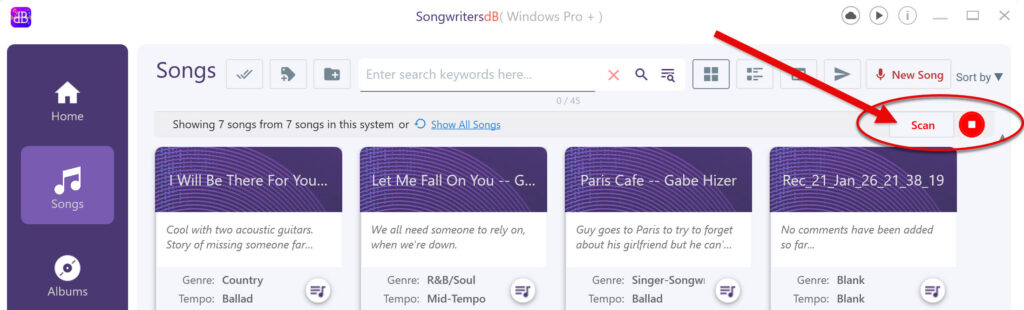
Clicking “Scan” at the top of the Songs page switches playback to Scan Mode, with the following results:
- In Scan mode, clicking the title of any song begins playback of the first ten seconds of all songs in sequence, starting with the clicked song.
- Clicking Pause temporarily stops the Scan playback. Clicking the title of another song re-starts the scan-mode playback from that song.
- Clicking Stop takes you out of Scan mode.
The purpose of Scan Mode is to enable you quickly to scan the audio of a bunch of songs without having to click Stop and Play repeatedly. For example, if you have 30 songs without descriptive titles, just Song #21, #22, etc., or just the date it was recorded, you may not easily find a particular song in that pile that you are looking for. You could, of course, click Play, listen to a bit of a song, decide it’s not the one you want, click Stop, click Play on the next song, etc. Or, instead, just click Scan, then the first song in that pile of songs, and sit back and let the app audition them for you! You will quickly find the song you are looking for without the headache of clicking Play and Stop over and over.
It is also a great way to remind you of your own unfinished songs. First, do a search of just those songs that have a Complete Status of “Music or Lyrics.” This will omit songs with completed music and lyrics. Then go into Scan Mode and start with the first song at the top and let it play through your pile of incomplete songs. You may be pleasantly surprised at what you find!