
You can immediately edit a just-recorded song or edit an existing song.
To edit a just-recorded song, follow the instructions below while looking at the song in the Add New Song window.
To edit an already-recorded audio, go to the song you wish to edit, then click the title to go to Edit Song Details. Now click Record/Edit Audio.
In either case, you can trim the start or end, punch-in replacement audio, and insert audio (Windows only).
Trim Start: Check the Punch-in/Out box. Set the left marker (Control + left click) at the very start of the song, set the right marker (Alt/Option + right click) where you want your audio to begin, then click the backspace key.
Trim End: Check the Punch-in/Out box. Set the left marker (Control + left click) at the very end of the song’s audio, set the right marker (Alt/Option + right click) at the end of the song, then click the backspace key.
Trim Inside the Audio: To delete a section of audio from within the song, set the left marker (Control + left click) at the beginning of the section you wish to delete, set the right marker (Alt/Option + right click) at the end of the section you wish to delete, then click the backspace key.
Punch-In/Insert Audio
“Punch-in” allows you to overwrite a portion of recorded audio, substituting the new audio for the already recorded section. In short, it allows you to fix a mistake or re-do a section of the audio.
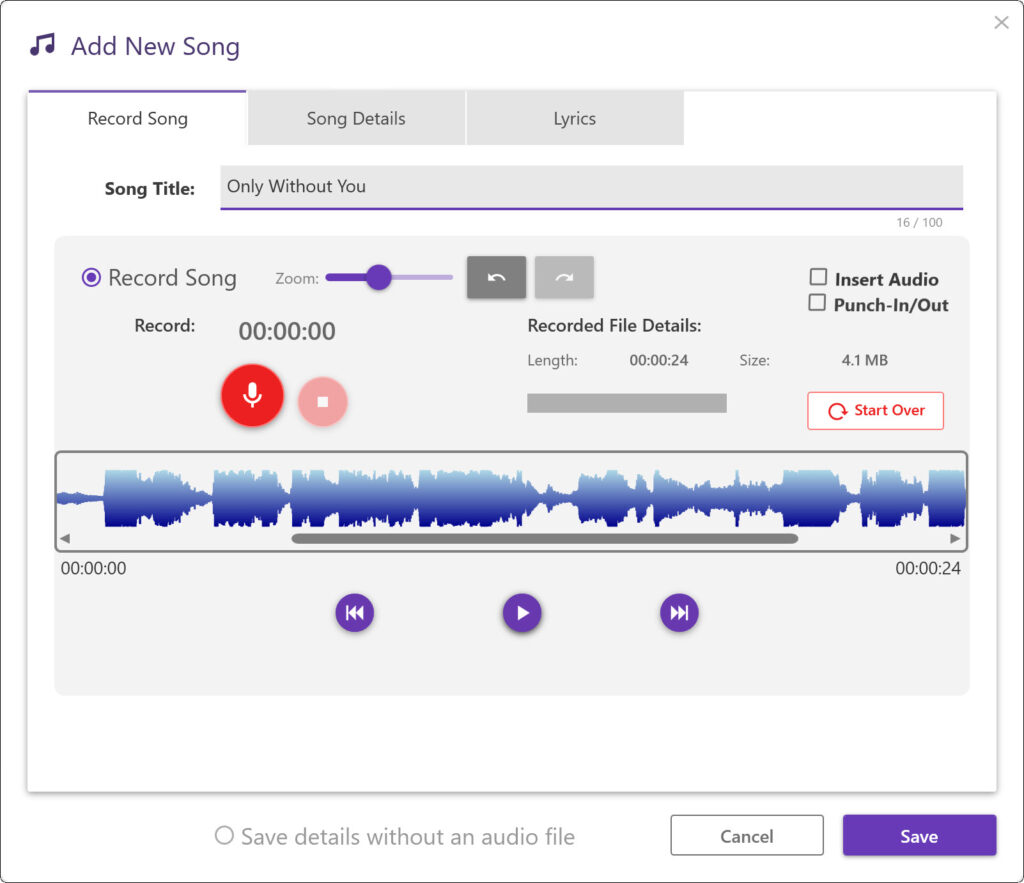
Use the “Zoom” slider to increase or decrease the height of the audio wave form as necessary. Use the horizontal scroll bar to move left and right in time, in the audio recording.
Tick the box next to “Punch-In/Out” then set the markers as follows:
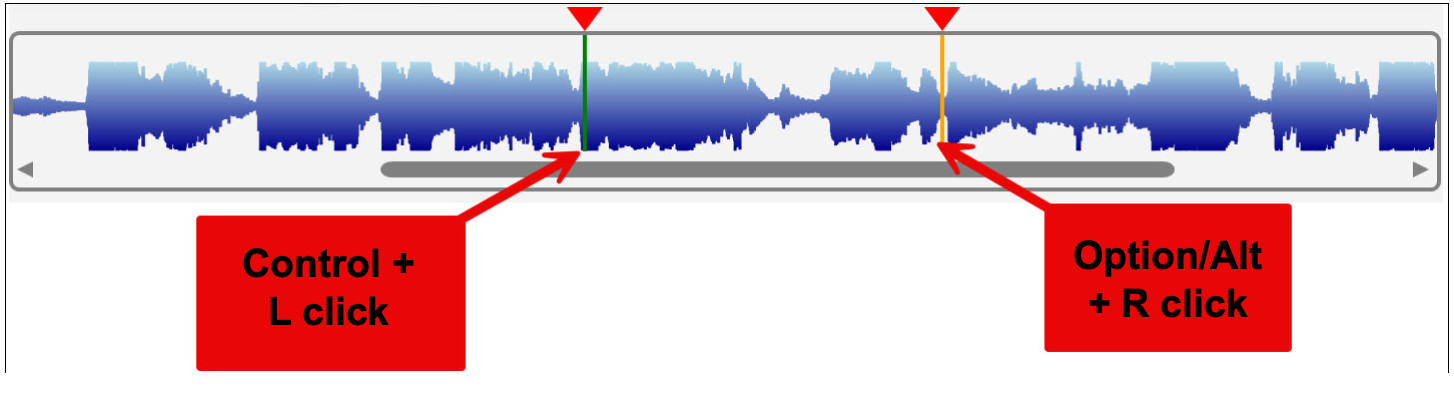
Click directly on the vertical markers to drag them left or right to adjust their position, if necessary.
When you are ready, left-click somewhere to the left of the first marker and click Play (or press the spacebar). The recorded audio will play back up to the point of the left marker then switch to Record, until the cursor reaches the right marker. After checking your punch-in, if you made a mistake click the Undo arrow at the top of the window and try again (you will need to re-tick the Punch-in/Out checkbox). Compare your takes with the Undo and Redo arrows until you are satisfied.
Adding music from the middle to the end or at the end. To add more music from a point before the end of the song that will REPLACE all audio from that point onward, or to add more music at the END of your song, place your cursor where you want the new audio to begin. Cick Record and start to sing/play immediately. Click “Stop” when you are done, and your new audio will have been added on to the end of your song.
As discussed above, use Undo/Redo to fix any mistakes until you are satisfied with your final version.
Finally, click Save to save your work, before you leave the page.
“Insert Audio” [Windows only] allows you to insert (add) new audio in the middle of an existing track. It ADDS time to the track, allowing you to insert a missing word or chord to the existing track..
Click the box next to “Insert Audio” then Ctl+left-click to set the marker where you want the insert to begin. Click directly on the vertical marker to drag it left or right to adjust its position, if necessary. When you are ready, Left-click somewhere to the left of the marker and click Record. The recorded audio will play back up to the point of the left marker then switch to Record, until you click Stop. However long you recorded will be inserted into the existing audio, starting at the marker.