
-
- Projects View
The typical view of your songs is represented by the icon with the four small squares, in the top section of the page. Hovering your mouse over that icon displays “Projects View.” This is the default view of your songs, where each song project is displayed within a square, with the name, comments, genre, tempo, and star rating in full view. The bottom row of icons on each song project contains the Play/Stop button, a Song Lyrics icon
  to take you to the song’s lyrics page (where you can type in lyrics to the song), the “Edit Song Details” icon
  , the “Share” icon
  , and finally the “More Options” icon with three vertical dots, which includes a “Browse location” link (which takes you to the actual file location on your computer) and “Delete this song” option. In the middle of the song project is an additional icon, the “Quick Details” icon
  , which opens a smaller vertical window containing the same fields as in the Song Details tab of the Edit Song Details page. This is handy when entering info for many songs, one after the other, since it can remain open outside the main window, allowing you to quickly enter or change song information. NOTE: At the bottom of the left menu is a small volume control. Moving the slider to the right will increase the playback volume of all songs, moving to the left will decrease the volume.
 - Lyrics View
Clicking the next icon at the top right of the Songs page takes you to the Lyrics View. Unique to SongwritersdB is the ability to display songs not only by their song names, but also by their lyric content. For example, you may have started a song and only have a few scraps of lyric typed in. Months later, you want to review the lyrics of your songs but don’t remember exactly what you wrote. Or maybe you’d like quickly to scan the first lines of song ideas you’ve started at various times. How can you do that? It’s easy with the SongwritersdB Lyrics View! This view will initially display the title and first line:
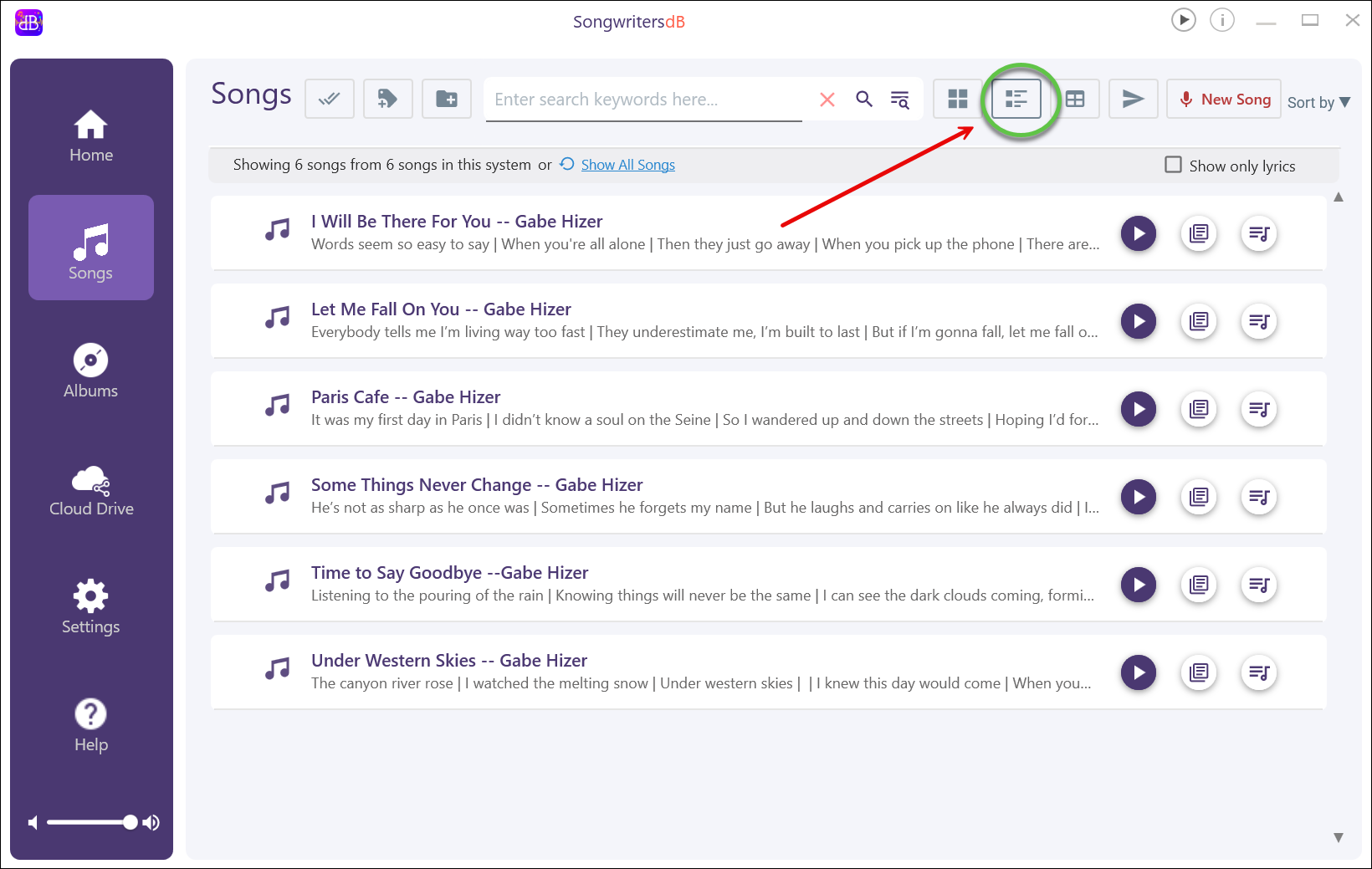 However, by clicking the “Show only lyrics” box on the right side of the page, you can view a two-line display omitting the title and containing the first few lines of every song in your collection. Here you can quickly scan your forgotten lyrics for renewed inspiration or to refresh your memory.
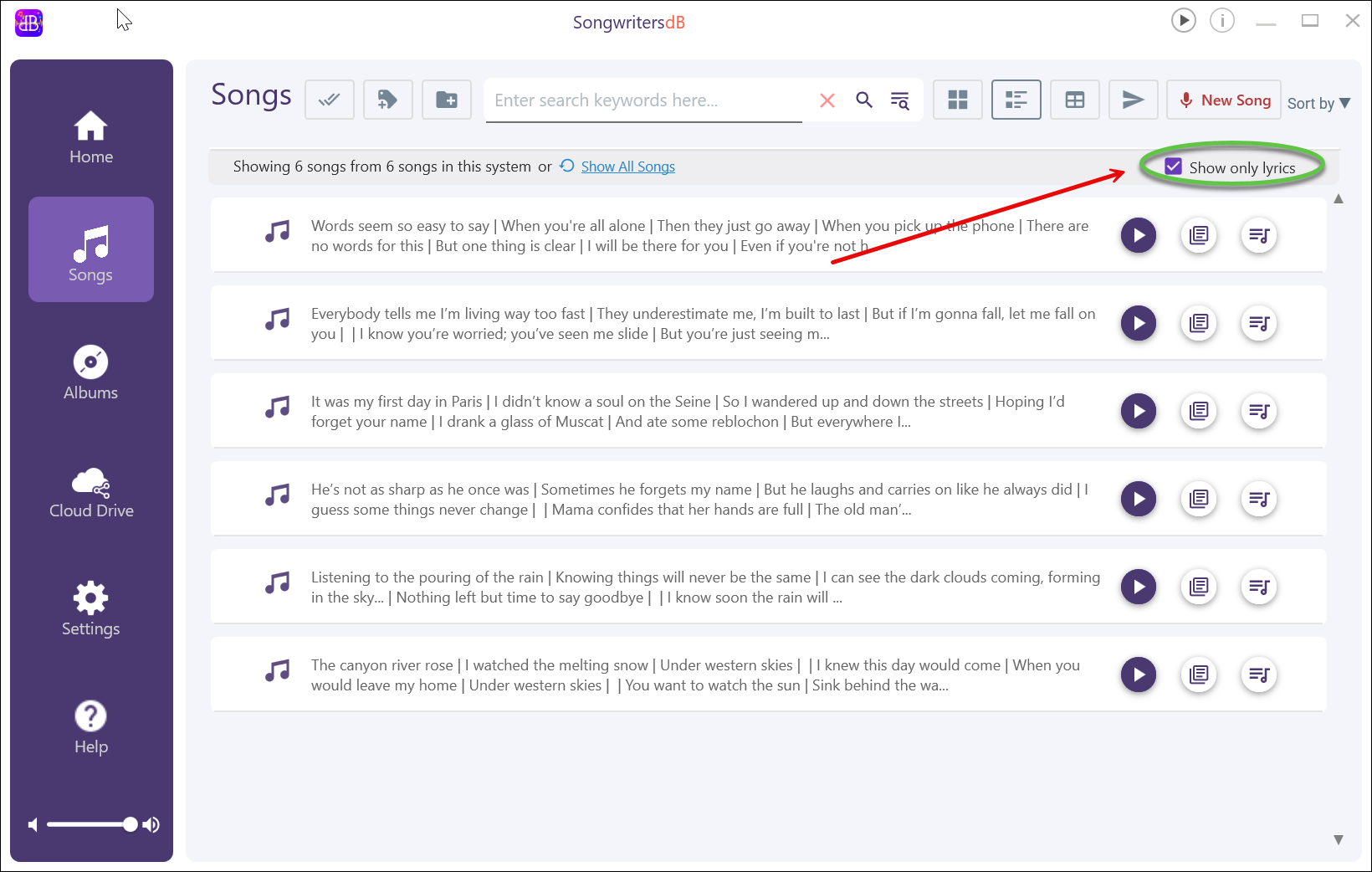 Once you find a lyric you want to focus on:
Click the Play icon to the right to hear the associated music.
Left-click the lyrics text to open the Lyrics page for that song.
Click the “Quick Details” icon at the end of each song project tile to add comments, attach a genre, give a star rating, completion status, etc., to help you further organize your songs.
 - List View
Clicking the List View icon takes you to the List View, which is a database view of all your songs.The advantage of the List View is that you can see all the data (title, tempo, genre, star rating, etc.) for all your songs in a compact display: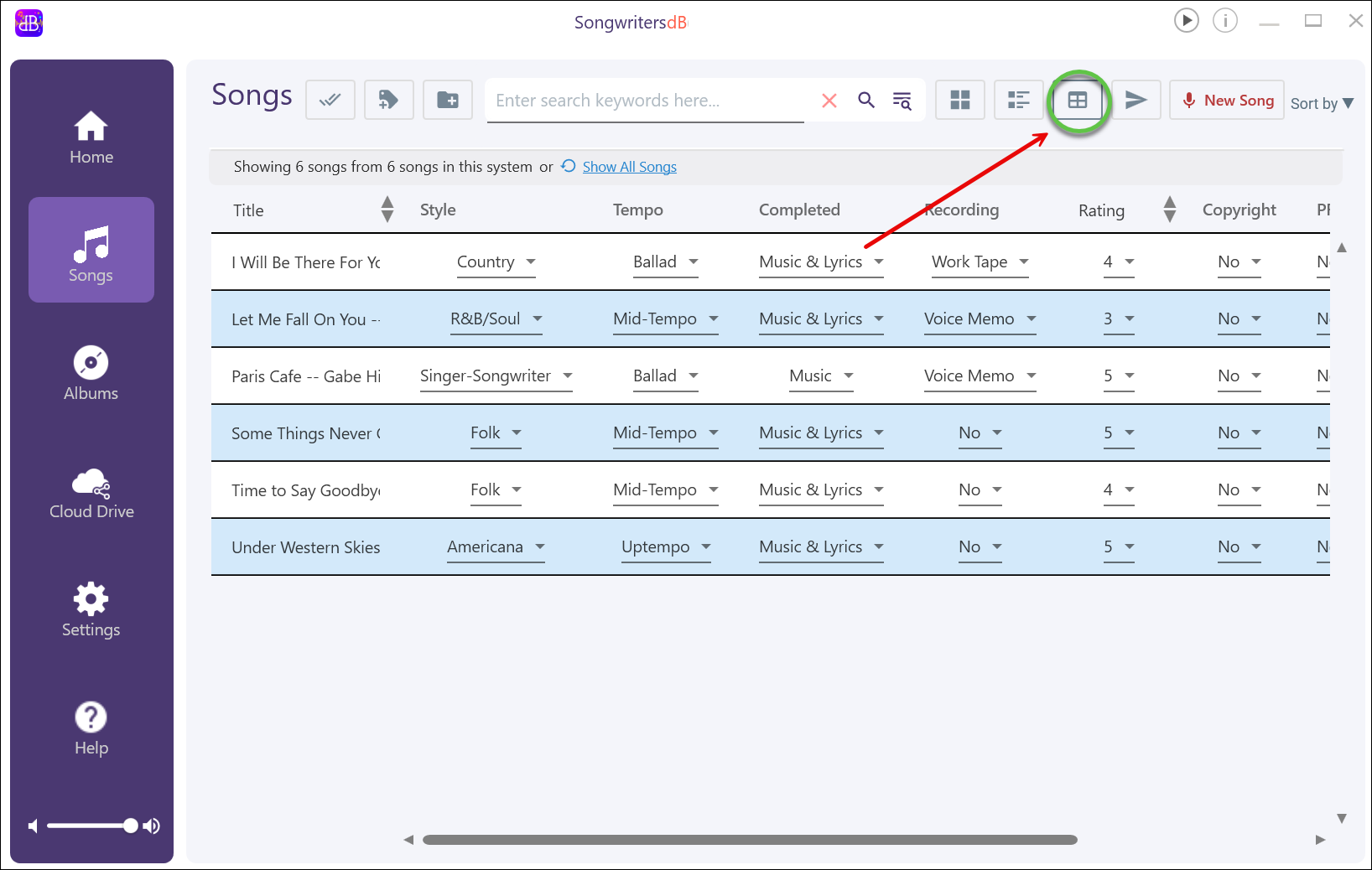
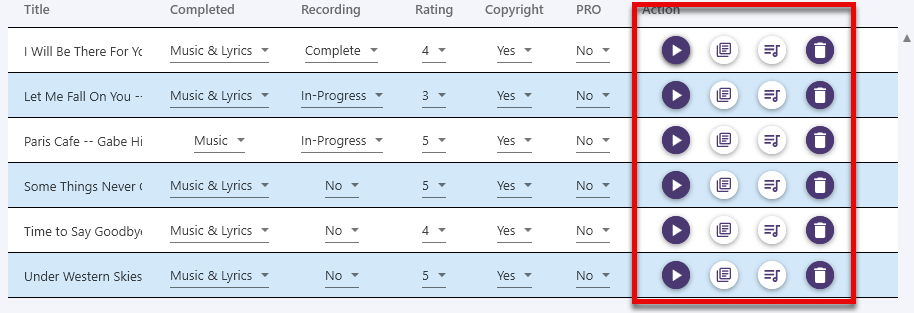
Scrolling to the right reveals the Action section, where you can immediately play any song, view the lyrics, open the Quick Details window, or delete the song.
- Projects View
A useful technique: Clicking the song name opens the Edit Song Details window. This allows you to quickly add comments to any song, as well as make any other desired changes.
Changing column widths [Windows only]: Hover your mouse pointer betweeen any two column headings until you see a two-headed arrow. Left-click and drag left or right to expand or contract the column to the left of the arrows.
Export Option
You can export the data in your songs file by clicking the “Export” button within the Lists View. You can then choose to rename the file and then export the data as a PDF, CSV, or XLSW (Excel) file. You will be presented with a browser window, where you can choose where to save this file.
- The file produced will list the following information:
Song title
Genre
Tempo
Recording status (voice memo, work tape, in-progress, demo, master)
Rating (1-5 stars)
Co-writers
Comments
Date Imported into SWDB
Date Recorded into SWDB
PRO
ISWC